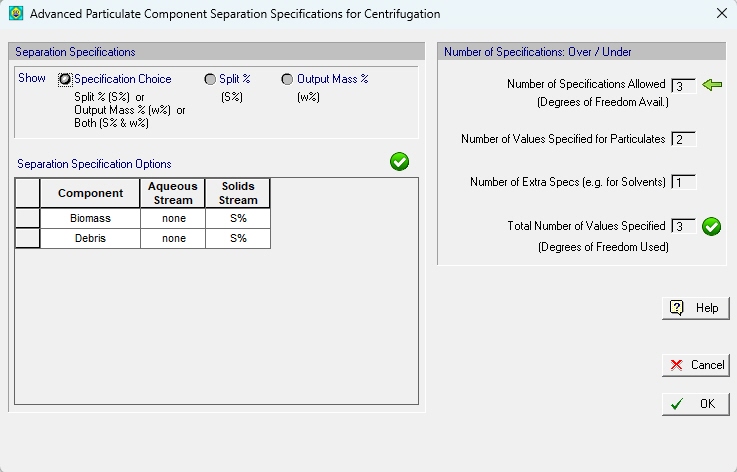
This dialog appears when you click on the Advanced Options... button on the Centrifugation: Mat. Balance Tab.
|
Variable |
Default Value |
Range |
|
|
||
|
○ Specification Choice: |
S% |
S% or w% or Both |
|
○ Split % (S%) |
0.0 |
0 – 100 |
|
○ Output Mass % (w%) |
0.0 |
0 – 100 |
|
○ Number of Specifications Allowed |
Positive |
Positive |
|
○ Number of Values Specified for Particulates |
Positive |
Positive |
|
○ Number of Extra Specs (e.g. for Solvents)% |
Positive |
0 - 2 |
|
○ Total Number of Values Specified |
Positive |
Positive |
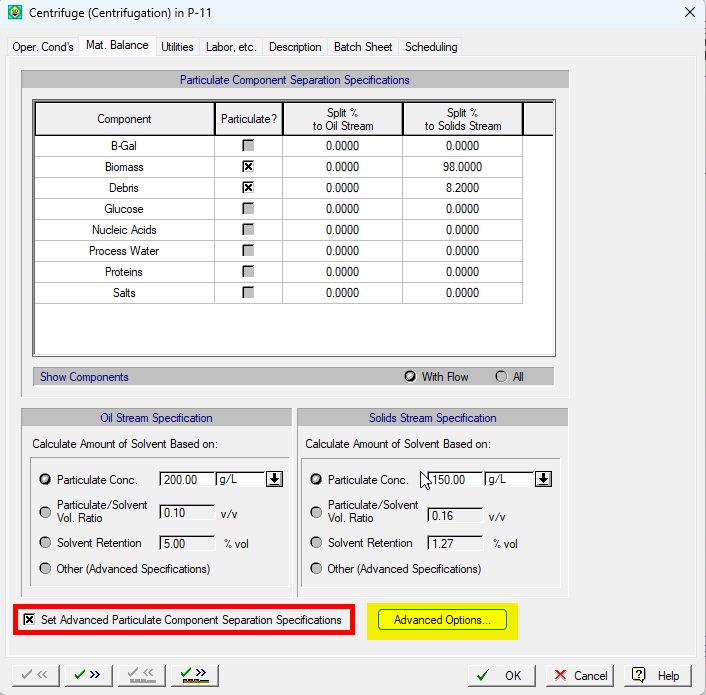
In order to bring up this interface, the “Advanced Options” button on the Mat. Balance tab must be first activated by clicking on the check box next to it (see below):
•When the ‘Specification Choice’ Button Is On...
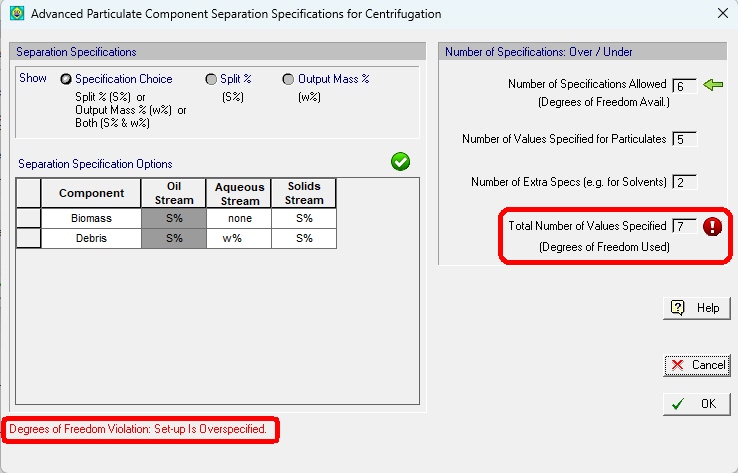
When this dialog is first invoked, the “Specification Choice” radio button is selected and therefore the grid below shows the user’s selections for which specs he wishes to provide values. If this is the first time visiting the Advanced Options dialog, the grid will show S% for each component to every stream available and none for all components on the Aqueous stream since that is the specification provided in the standard simulation of a centrifugation operation. User can opt to turn some of the ‘None’ specs into ‘S%’, ‘w%’ or both ‘S5&w%’ . Notice that as this is done, the number of values specified for particulates (on the right) increases (and so is the total number of values specified). If the total number of values specified exceeds the number of degrees of freedom, a red indicator will appear next to the field of ‘Total Number of Values Specified’ and a red message also will show at the bottom of the dialog (see below).
A similar status indicator and message will be shown when too many specifications are taken back and the number of values specified ends up smaller than the number of degrees of freedom available. The goal is to provide exactly as many specifications needed to exactly match the available degrees of freedom. When this happens, the indicator will turn into green (see below):
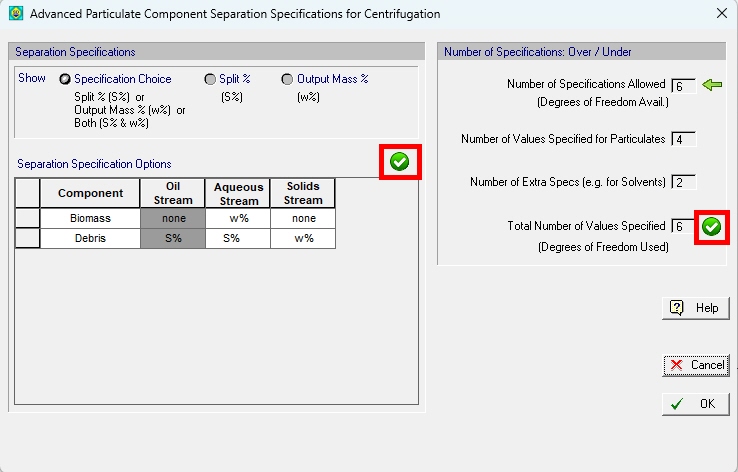
It is possible that even though the number of specifications provided match the available degrees of freedom, the choices made were such that they lead to an irreconcilable set of specifications. When that happens, there will be a red indicator next to the table of specifications (see below):
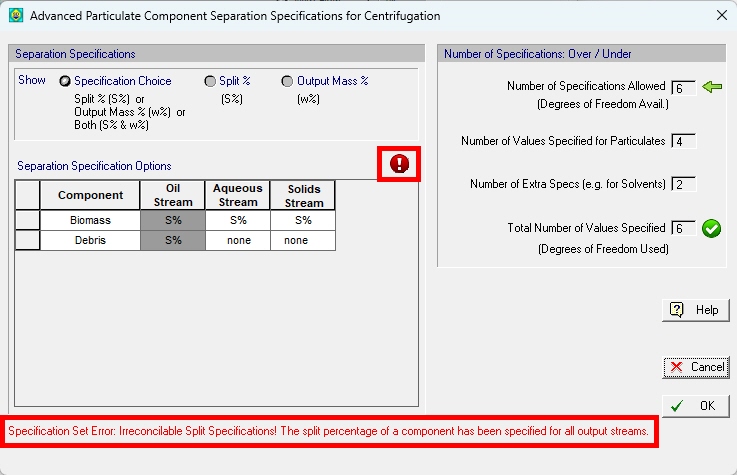
For example, in the case shown above the user opted to set the split percentage of ‘Biomass’ on both the Solids Stream and the Aqueous Stream and of course that is not possible since once the one is set the other is implicitly.
For more details, see Centrifugation: Advanced Modeling Calculations
•When the Split Percentage Button Is On...
Then the grid below shows the split percentage values of each component to each stream.
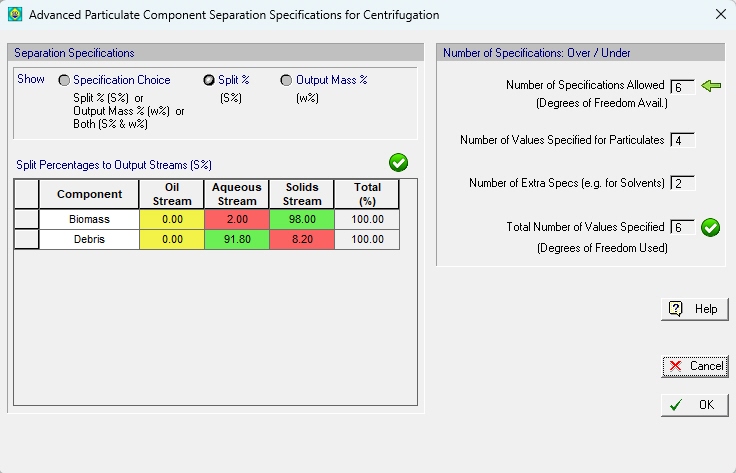
Notice that some fields are shown with green background (indicating that the value can be edited by the user) and some are shown with a red background (indicating that the value is non-editable but has been - or will be - calculated as a simulation output). The green fields correspond to those grid coordinates (i,j) where in the specification choice grid the user had chosen either ‘S%’ or ‘S% & w%’. Note that some of the values shown in red may indicate simulation results from a previous run of M&E balances. Typically when the Advanced Specifications Dialog is first invoked, the fields for the outlet stream(s) are shown in green and show values reflecting the values set on the Mat. Balance tab by user.
It is possible to see fields with a yellow background. Those are editable values but correspond to a stream that currently is NOT present on the flowsheet.
•When the Output Mass Percentage Button Is On...
Then the grid shows the mass fractions (as a percentage) of each component (row) in every stream assumed to present (column).
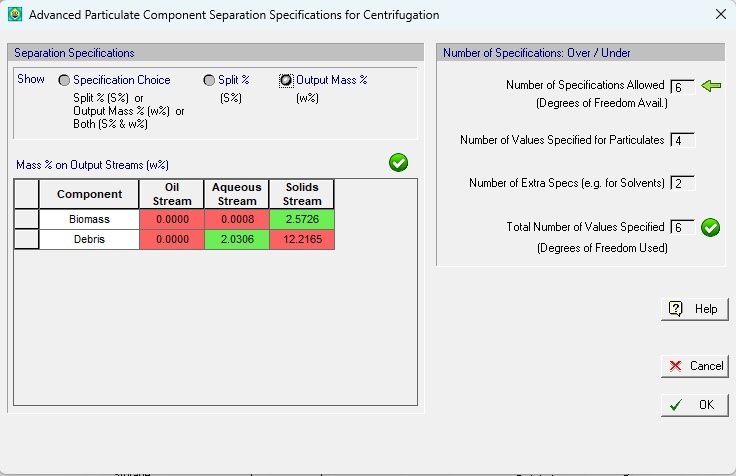
Notice that some fields are shown with green background (indicating that the value can be edited by the user) and some are shown with a red background (indicating that the value is non-editable but has been - or will be - calculated as a simulation output). The green fields correspond to those grid coordinates (i,j) where in the specification choice grid the user had chosen either ‘w%’ or ‘S% & w%’. Note that some of the values shown in red may indicate simulation results from a previous run of M&E balances. Typically when the Advanced Specifications Dialog is first invoked, the fields for the outlet stream(s) are shown in red.
It is possible to see fields with a yellow background. Those are editable values but correspond to a stream that currently is NOT present on the flowsheet.
When you attempt to exit the dialog with “OK”, if at least one of the status indicators is red you will be shown a warning message reflecting the current conflict on the user specifications as they currently stand. However, the dialog will allow you to exit even though there may be violations of either irreconcilable specs or a set of specs that violate the degrees of freedom available. There are two reasons for that:
1. After you exit this dialog, you may change some of the underlying assumptions used to generate the error message(s). For example, if you had supplied an extra specification and the system was overspecified by one, it is possible to set the solvent requirement on the Mat. Balance from what it was to ‘Other’. Then, since you have retracted a specification, the number of degrees of freedom will be satisfied. Also, you may check-in or check-out a component from the list of particulates; finally, you may add or remove an outlet stream from consideration by visiting the Oper.Cond’s tab and changing the operating conditions from “Oil Stream Only” or “Solids Stream Only” to both (or vice versa).
2. The ultimate test that needs to be passed is at simulation time. If at that time some of the components assumed as particulates are not present, then the clearly the available degrees of freedom will be different (smaller) and a simulation time error will be generated. It is also possible that at the time the simulation is run, the number of available outlet streams is different; again a simulation error will be generated.